Model
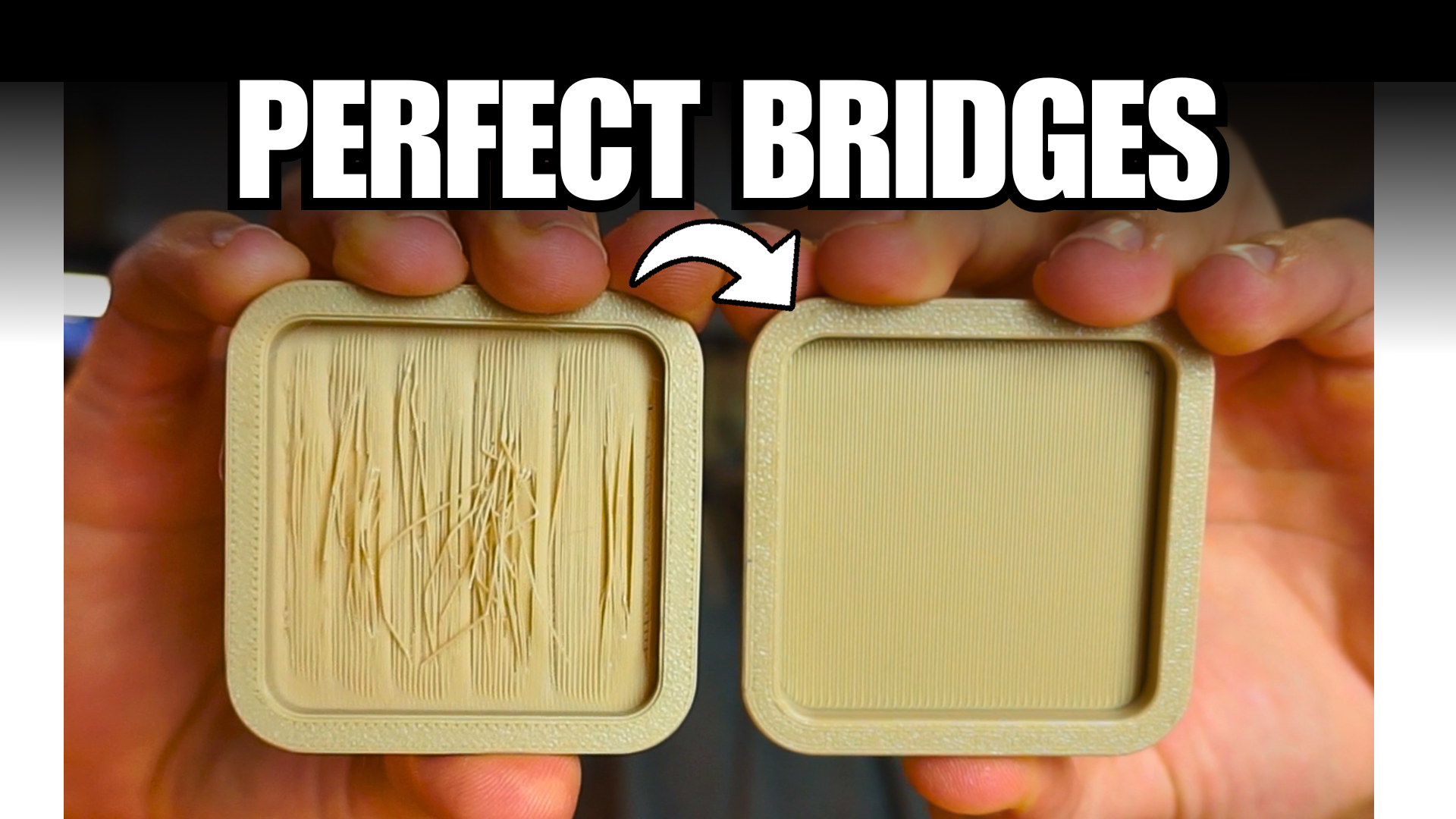
3D Printing Bridge Calibration Test (Basic & Advanced)
Description
🎥 Watch the video tutorial In the video, I explain:
-How bridge flow and speed affect the print.
-Why more flow gives smoother results.
-How to tune these settings in OrcaSlicer .
-How to combine this with Tree Supports → “Critical regions only” to skip supports in bridges automatically.
🧩 About this model This is a bridge calibration test designed to help you fine-tune the flow , speed , and cooling parameters of your 3D printer for perfect bridges — no supports needed .
You’ll find two STL files included:
BRIDGE CALIBRATION.stl → Simple version for short bridges (perfect for initial tests).
ADVANCED BRIDGE CALIBRATION.stl → To push your settings further.
Both files let you test different Bridge Flow Ratios (1.0 / 1.5 / 2.0) and Bridge Speeds (25 / 15 / 10 mm/s).
You can print them one after another and easily see which combination gives the best results on your printer.
🔧 Recommended settings Parameter Suggested values Flow 150 – 200 % Speed 10 – 15 mm/s Fan 100 % Layer height 0.2 mm Material PLA (recommended) Nozzle 0.4–0.6 mm These values are what worked best for me on a FlashForge AD5X with a 0.6 mm nozzle.
🧠 Why this test matters Most slicers are tuned for printing on solid layers, but bridges behave differently — there’s nothing underneath, so the filament doesn’t get squished or widen as usual.
That’s why increasing the bridge flow often gives better results: wider lines that touch each other and stay straight in the air.
Combining that with lower speed and maximum cooling produces clean, smooth bridges without sagging.
💡 Notes You can download both STLs and print them separately.
For faster comparisons, print at 1 wall / 10 % infill.
Share your results — I’d love to see how your bridges turn out!
🌐 More resources
📘 Complete Fusion 360 Course (in Spanish):
👉 https://knincustom.com/pages/cursos
📺 Find us on YouTube:
👉 https://www.youtube.com/@KNIN_Custom
Source URL
https://www.printables.com/model/1475259-3d-printing-bridge-calibration-test-basic-advanced
License